Canva for Print on Demand: Can You Use It?
The complete guide to Canva and print on demand: rules, workflow, mockups and alternatives.
Yes, you can use Canva for print on demand, as long as you follow its rules. The harder question is not whether you can, but how much time it costs. A Canva workflow means moving between several tabs for every single product. This guide covers the rules, the real workflow and a way to cut the tab-hopping.
What Canva is good for in print on demand
Canva is a design editor with templates, fonts, elements and AI features. It is easy to learn, and it gives you full control over layout and typography. For text-based designs and branded looks, it is a strong starting point.
What you have to learn before your first product
Canva is friendly, but selling a printed product with it means learning several separate things before the first sale. Each one is easy alone. Together they take time.
- The editor: canvas, layers, templates, elements and fonts.
- Print sizes: your supplier's print area and the resolution it needs.
- Export: file formats and transparent backgrounds, and what your plan allows.
- Licensing: what you may and may not print from Canva content (see the rules below).
- The supplier's tool: its upload, placement and mockup preview.
- Your shop's listing: title, description and tags that people can find.
The rules to know before you sell
According to Canva's own help page on products for sale, you can sell print on demand products made with Canva elements, with conditions:
- The product must be an original design. Mixing free and Pro content is fine.
- You cannot print Canva content as-is, and you cannot sell it on its own.
- Some print services ask you to confirm that you own the copyright. In that case, you cannot include Canva content, because you only have a license to it.
- Etsy, Printify and Gelato have their own terms. Canva cannot advise you on them: read them.
The tab problem: what a Canva workflow really looks like
- Design in Canva and export the file.
- Open your supplier, such as Printify or Gelato, and pick a product.
- Upload the file and place it on each print area.
- Check the preview and set colors, sizes and prices.
- Open your shop and write the title, description and tags.
- Publish, then start again for the next product.
That is three to five tabs and many manual steps for every product. With ten designs on four products each, you repeat it forty times.
One idea, one prompt: the short path
With Magicmoon, you start from the idea, not from the tool. You do not have to learn an editor, print sizes or export formats first.
- Write your idea as a prompt: the subject and the style.
- Keep the designs you like and drop the others.
- Pick the supplier, the product and its variants.
- Review the title, description and tags the AI wrote.
- Publish to your shop as a draft or live, when you decide.
You still make the choices, and nothing goes live without you. What disappears is the learning curve and the tab-hopping between the steps.
One interface instead of many tabs
Magicmoon connects the pieces: Printify and Gelato on the supplier side, and Etsy, Shopify and WooCommerce on the shop side, all in one interface. You create a design with the AI or import your own file, choose the product, place the design, let the AI write the listing and publish. Orders are still produced and shipped by your supplier. Read the Magicmoon review for the full picture.
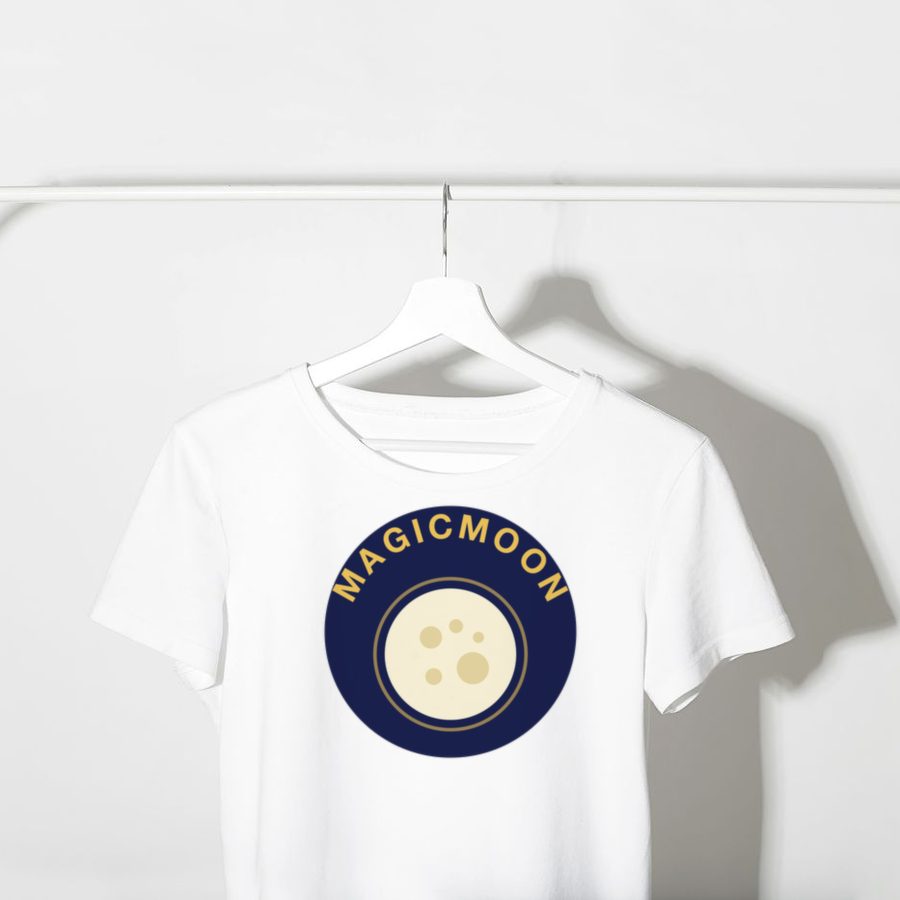
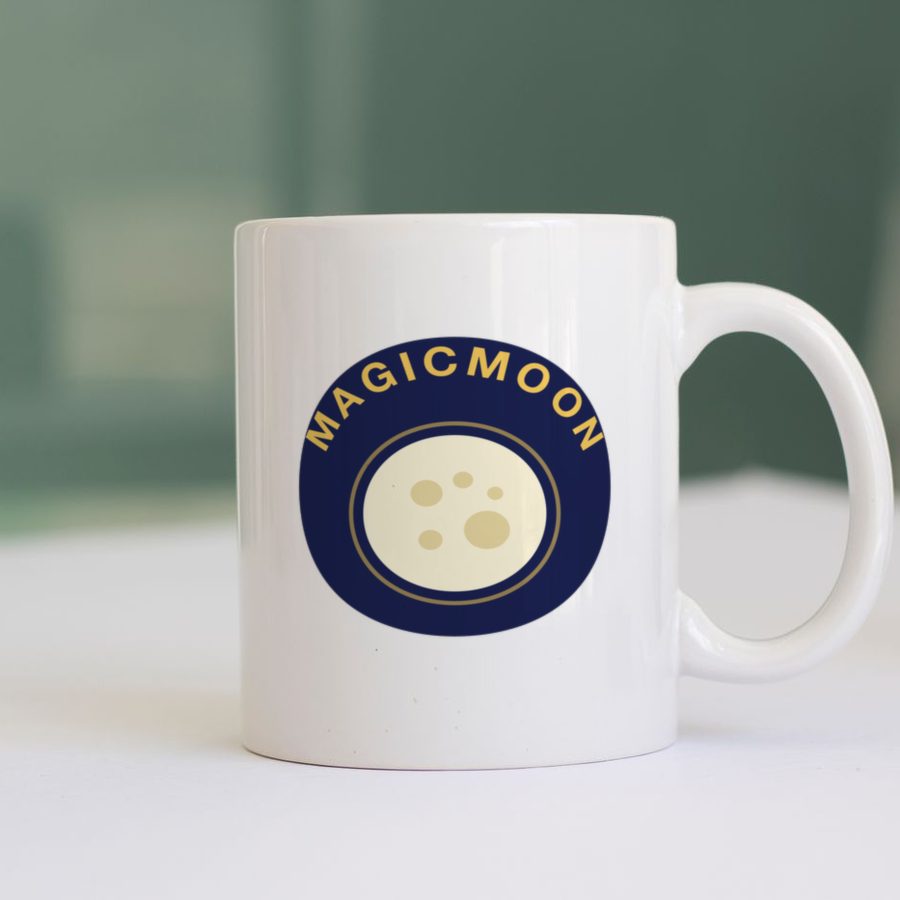
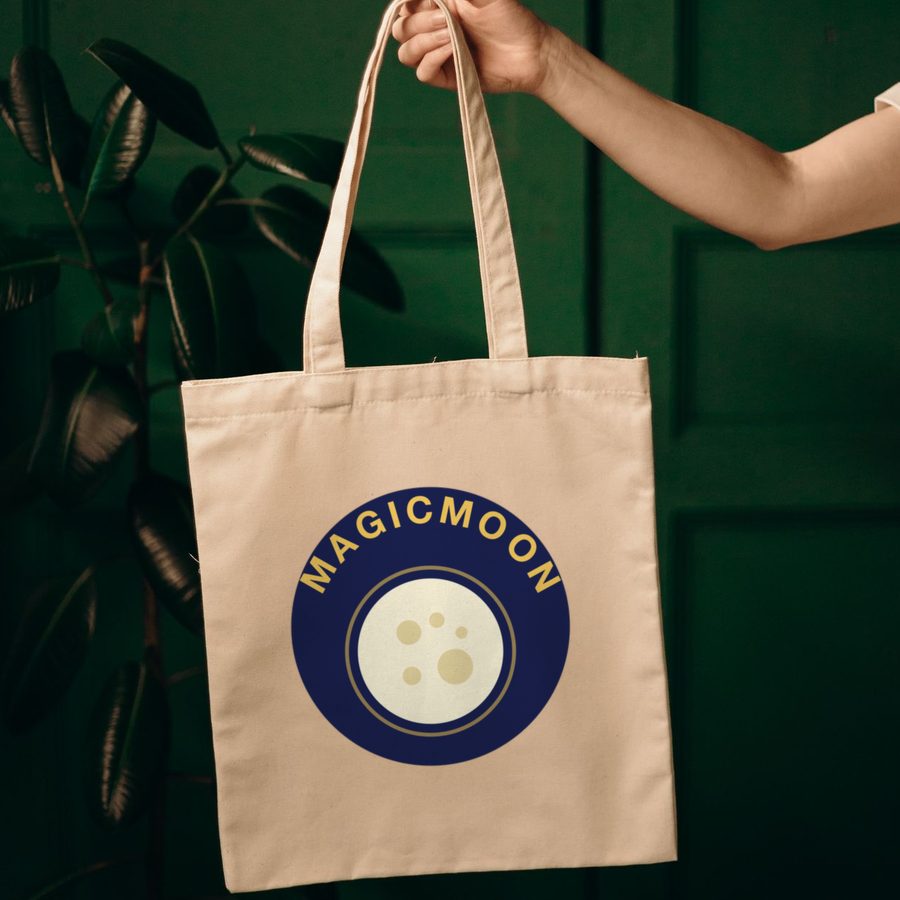
Mockup examples: one design, many products.
You do not have to choose between the two. Finish a design in Canva, export it, and import it into Magicmoon as PNG, JPG or WebP.
Canva workflow vs one interface
| Step | Canva, supplier and shop in separate tabs | Magicmoon in one interface |
|---|---|---|
| Creating the design | You build it yourself from templates, fonts and elements | AI creates it from a description, or you import your own file |
| Choosing product and variants | Done in your supplier's site, in another tab | Done in the same interface |
| Placing the design | Done again in the supplier's tool | Done in the same interface, front and back when allowed |
| Writing the listing | You write title, description and tags by hand | AI writes them, you review |
| Publishing to your shop | Manual, in your shop's dashboard | Direct to Etsy, Shopify or WooCommerce, as a draft or live |
| Making many products | Repeat every step for each product | A template reused for up to 500 ideas |
Mockups in Canva
Canva offers mockup templates, and its Smartmockups integration lets you drop a design onto a product photo. They are quick, but they are generic and made by hand for each product and color. Our guide to Canva mockups for print on demand shows the steps and the limits.
Canva alternatives
If Canva is not the right fit, there are design editors, mockup tools and all-in-one AI studios to compare. See our Canva alternatives for print on demand, or go straight to Magicmoon vs Canva.
When Canva is still the better choice
Choose Canva when you want exact control of every letter and layout, when your design is mostly typography, or when you only sell a handful of products. In those cases, the extra time buys you precision. For a closer look at design-only tools, read our guide to the best AI for print on demand. If you design for t-shirts, follow our Canva t-shirt design guide.
All our Canva guides
Frequently asked questions
Can I sell designs made with Canva on Etsy?
Often yes, under conditions. Canva says print on demand products must be an original design and that Canva content cannot be printed as-is. Etsy and your supplier have their own rules, so read them before you list.
Can I use Canva designs in Magicmoon?
Yes. Magicmoon lets you import your own artwork as PNG, JPG or WebP, so a design finished in Canva can go straight into the product setup.
Do I still need Canva if I use an all-in-one tool?
Not always. Canva stays useful when you want full control over typography and layout. An all-in-one tool covers the rest: supplier setup, placement, listing and publishing.